How to Easily Upload a Christmas SVG File to Cricut Design Space
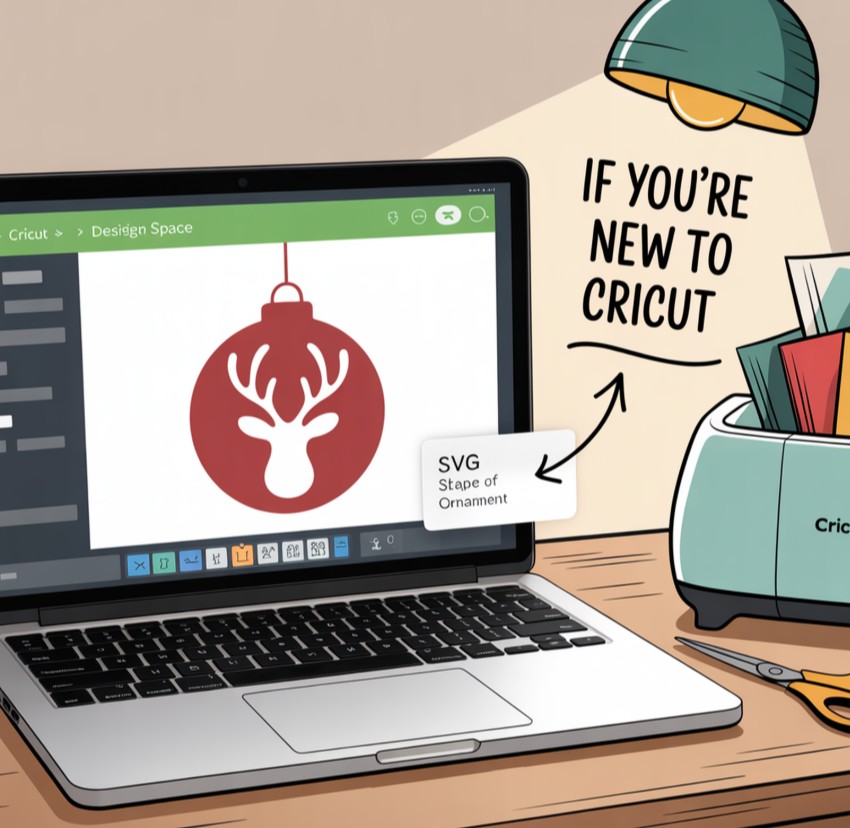
If you’re new to Cricut, you might be wondering how to upload SVG Files to Cricut Design Space? Don’t worry—it’s much easier than it looks. In this Cricut beginner guide, I’ll walk you through the steps using a Christmas SVG tutorial as an example. By the end, you’ll be ready to cut ornaments, tags, cards, and more in just a few clicks.
What is an SVG File?
SVG stands for Scalable Vector Graphic. Unlike PNG or JPG files, SVGs are made of lines and shapes (called vectors). This is what makes them so valuable for Cricut users—your machine can follow those paths to create precise cuts.
Why Use SVG Files in Cricut Projects?
- Perfect scaling: Resize your design as big or small as you want without losing quality.
- Layered designs: SVGs often come pre-layered, making it easier to cut and assemble multi-color projects.
- Clean cuts: Cricut machines can read SVGs directly, following the lines with precision.
- Faster workflow: No need to trace or convert images—SVGs are ready to go.
By contrast, PNGs or JPGs are “flat” images. They’re better for print-then-cut projects, but they don’t give Cricut the cutting paths it needs. For Christmas ornaments, cards, or vinyl decals, SVG is the gold standard.
Step-by-Step: Uploading Your Christmas SVG File
1. Download Your SVG Bundle
When you purchase or grab a free Christmas SVG online, it will usually come as a .zip file. That’s totally normal—it just means the files are compressed.
2. Unzip the Files
- Windows: Right-click the .zip file → Select Extract All.
- Mac: Double-click the .zip, or use Archive Utility.
Now you’ll see a new folder with your Cricut SVG files inside.
3. Open Cricut Design Space
Log in to Cricut Design Space on desktop or mobile. Once it’s open, you’re ready to start uploading SVGs to Cricut.
4. Upload the SVG
- Click Upload in the left menu.
- Choose Upload Image.
- Select your SVG file from the unzipped folder.
- Give it a name (for example: Christmas Ornament SVG).
- Click Save.
5. Insert and Adjust
- Find your SVG in the Recently Uploaded section.
- Click Insert Images to add it to your canvas.
- Resize or adjust as needed.
Pro Tip: If you’re cutting multiple Christmas projects, upload several SVGs and place them all on the same canvas to save time.
Holiday Crafting Ideas with Christmas SVGs
Once your SVG is uploaded, the fun begins! Here are a few festive projects you can make right away:
- Christmas Ornaments: Upload ornament SVGs, cut them on vinyl, and apply to clear baubles or wood slices.
- Gift Tags: Use a tag-shaped SVG and personalize with names for a professional touch.
- Holiday Cards: Layer SVGs of snowflakes, trees, or Santa hats for handmade cards.
- Home Décor: Cut SVGs on iron-on vinyl to create Christmas pillow covers or tea towels.
- Gift Wrap: Add SVG cutouts to paper bags or boxes for custom packaging.
The beauty of SVGs is that you can resize them instantly, so one file can work across multiple projects.
Troubleshooting: Common Issues When Uploading SVGs

Even Cricut pros run into hiccups sometimes. Here are a few common problems and fixes:
My SVG won’t upload
- Make sure the file is unzipped first.
- Double-check that you’re selecting the .svg file, not a PNG or JPG preview.
My SVG looks blank in Design Space
- Sometimes SVGs are designed in white (common with Christmas snowflake files). Try changing the canvas color to see the design.
My layers are all stuck together
- Some SVGs come grouped. Use the Ungroup button in Design Space to separate layers.
The file size is too large
- Complex SVGs (like detailed Christmas mandalas) can slow down Design Space. Simplify the design in software like Inkscape or use fewer layers.
I can’t find my uploaded SVG
- Go to Recently Uploaded under Images. If you renamed it when uploading, search for that name.
That’s It—Your SVG is Ready to Cut
Your Christmas SVG is now in Cricut Design Space and ready to go. Even if you’re brand new, this Cricut beginner guide proves that uploading SVGs is quick and easy.
With just a few clicks, you can start making DIY holiday crafts—from personalized ornaments to festive gift tags and handmade cards.
So, what’s the first project you’ll make with your SVGs?
Frequently Asked Questions
1. What does SVG stand for?
SVG means Scalable Vector Graphic. It’s a file type made of lines and shapes instead of pixels, so it resizes perfectly—ideal for Cricut projects.
2. Why won’t my SVG upload to Cricut Design Space?
The most common issue is that the file is still zipped. Make sure you’ve unzipped/extracted your download first. Also, double-check that you’re selecting the .svg file, not a PNG or JPG preview included in the folder.
3. Can I upload SVG files on the Cricut mobile app?
Yes. Both desktop and mobile versions of Cricut Design Space allow uploading SVGs. On mobile, the steps are nearly identical.
4. Do I need a Cricut subscription to upload SVG files?
No. Uploading SVGs is free for all Cricut users. A subscription (Cricut Access) only gives you extra fonts and images, but you can always upload your own SVGs at no cost.
5. What’s the difference between SVG and PNG files?
SVG files are cuttable vector designs—your Cricut can follow the lines and cut them precisely. PNG files are flat images, better for printing than cutting. For clean cuts, always choose SVGs.
6. Can I upload multiple SVG files at once?
Yes. You can upload as many SVGs as you want to Cricut Design Space. They’ll all appear in your Recently Uploaded section.
7. How do I organize my SVGs in Cricut Design Space?
When you upload an SVG, give it a descriptive name (like “Christmas Ornament SVG”). This makes it easier to find later.
8. Will SVGs work on every Cricut machine?
Yes. Whether you’re using a Cricut Joy, Explore, or Maker, SVG files will upload and cut perfectly. The only difference is the size of your cutting mat.
Learning how to upload SVG Files to Cricut Design Space is a game-changer for every crafter. SVG files make it easy to achieve precise, professional-looking cuts, whether you’re designing with vinyl, cardstock, or other materials. Once you know how to upload SVG Files, you’ll save time, boost creativity, and unlock endless project ideas.
Looking for inspiration? You can find a huge collection of free SVG files

[…] a New Project and click Upload on the left-hand […]