Huge Collection of 50 Free SVG Files for Cricut
If you are looking for the best 50 free SVG files for Cricut, you are in the right place. This page features a collection of SVG designs including funny quotes, coffee graphics, dog designs, seasonal SVGs and more.
This page features a growing library of free SVG files for Cricut including funny quotes, coffee designs, dog graphics, seasonal SVGs and crafting designs.
SVG files are perfect for Cricut, Silhouette, ScanNCut and other cutting machines. These designs can be used to create mugs, t-shirts, tote bags, vinyl decals, wooden signs and personalised gifts.
Popular SVG Downloads
If you are not sure where to start, here are some of the most popular SVG downloads on Crafty Crafter Club.
Popular SVG Downloads


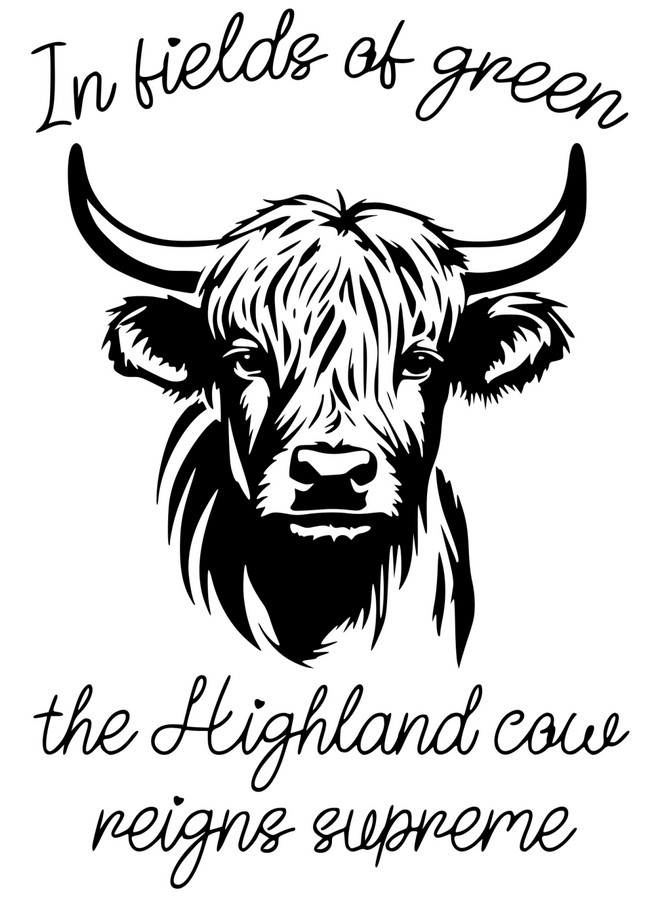
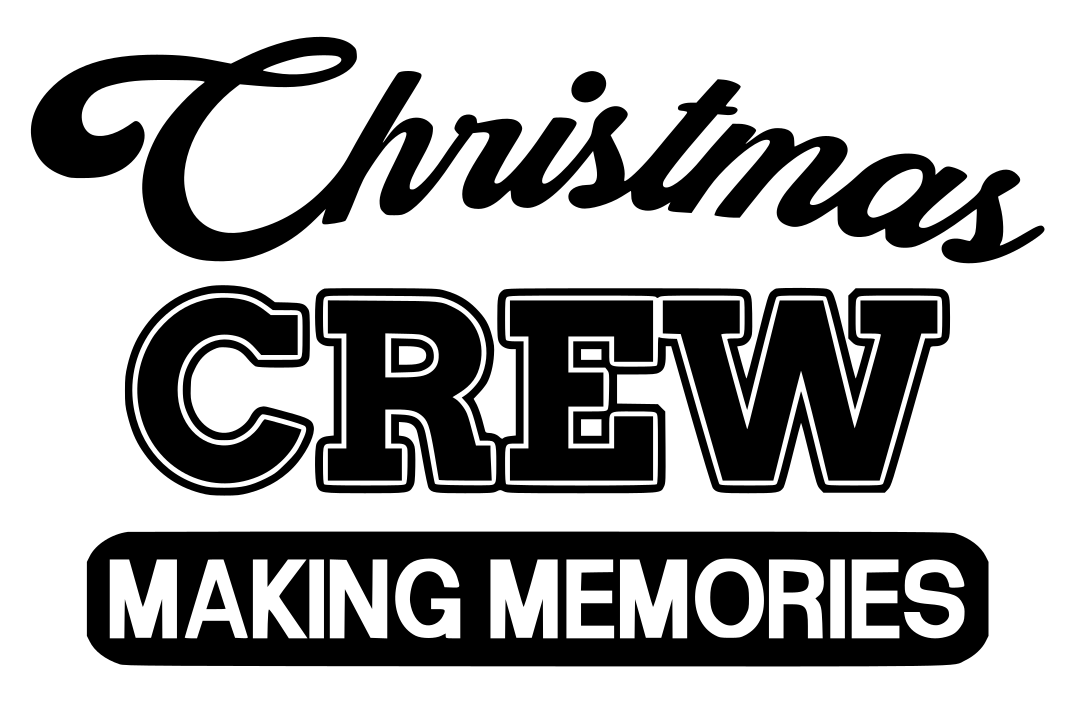


Browse Free SVG Files by Category
Jump to a section below to find the type of SVG design you are looking for.
- Funny SVG Quotes
- Coffee SVG Files
- Dog SVG Files
- Highland Cow SVG Files
- Halloween SVG Files
- Christmas SVG Files
- Cricut Guides and Tools
What Are SVG Files?
SVG stands for Scalable Vector Graphic. Unlike normal image files, SVG graphics can be resized without losing quality. This makes them perfect for Cricut and other cutting machines.
- T-shirts
- Mugs and tumblers
- Vinyl decals
- Wall art
- Tote bags
- Personalised gifts
Funny SVG Quotes
Funny SVG quotes are some of the most popular Cricut designs. Sarcastic sayings and humorous quotes are perfect for shirts, mugs and handmade gifts.
- Funny SVG Quotes for Cricut
- Fed Up SVG
- We Are All Crazy Here SVG
- I Have No Filter SVG
- Running Out of Craft Supplies SVG
Coffee SVG Files
Lets continue looking at our 50 Free SVG Files. Coffee themed SVG designs are perfect for mugs, tumblers and kitchen decor projects.
- My Blood Type is Coffee SVG
- De-Stress Coffee SVG
- All You Need SVG
- Barista Life SVG
- Leggings & Lattes SVG
Dog SVG Files
Dog SVG designs are perfect for pet lovers and make great Cricut projects for shirts, mugs and gifts.
- Dog SVG Design Bundle
- 10 Free Dog SVG Bundle
- Dog SVG Bundle Vol 20
- 20 Dog Designs Bundle
- Peeking Dog SVG Bundle
Highland Cow SVG Files
Highland cow SVG designs are extremely popular for farmhouse crafts and rustic décor.
Halloween SVG Files
Halloween SVG files are perfect for spooky shirts, decorations and party crafts.
- Halloween Is My Christmas SVG
- Happy Halloween SVG
- Ready for Halloween SVG
- His and Her Halloween Ears SVG
Christmas SVG Files
Christmas SVG designs are perfect for festive shirts, mugs and decorations.
- Christmas Crew SVG
- Christmas Life SVG
- Reindeers Day Off SVG
- Chillin in a Winter Wonderland SVG
- Ye Olde Sleigh Rides SVG
Cricut Guides and Tools
How to Use SVG Files in Cricut Design Space
Using SVG files with Cricut Design Space is simple, even if you are new to Cricut crafting. SVG files are vector graphics, which means they can be resized without losing quality. This makes them perfect for projects such as vinyl decals, shirts, mugs, tote bags and home décor. With 50 Free SVG Files to choose from, you will need to learn how to use them.
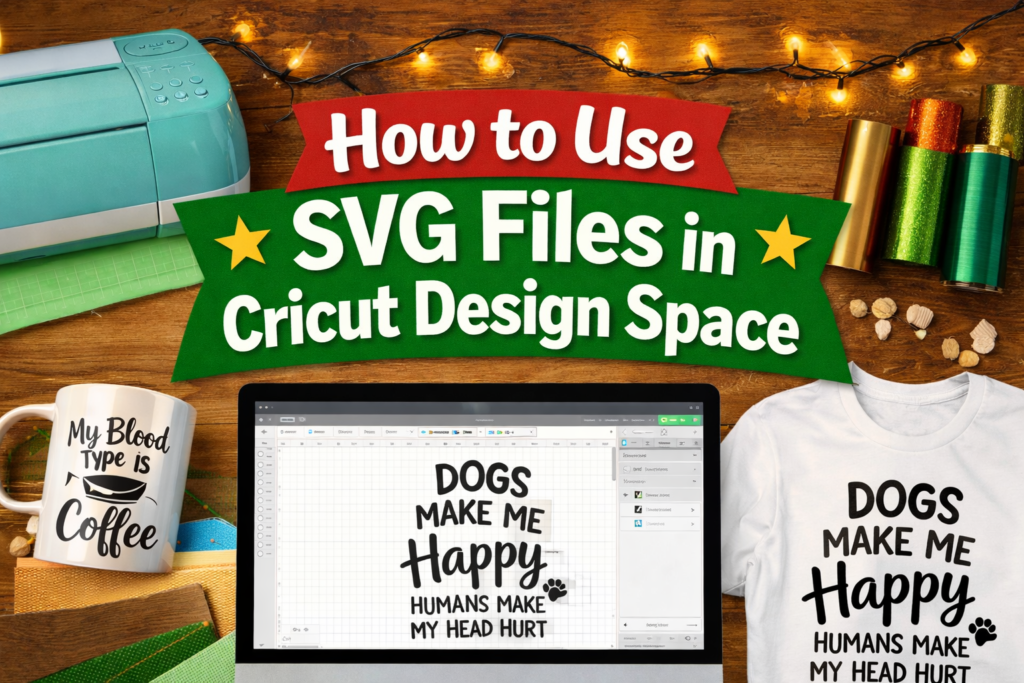
Follow these steps to upload and use SVG files in Cricut Design Space.
1. Download the SVG File
First download the SVG file to your computer. Many downloads come in a ZIP folder containing several file formats such as SVG, PNG, DXF and EPS. Cricut Design Space works best with the SVG version.
If the file is zipped, simply right-click the folder and select Extract before uploading the SVG file.
2. Open Cricut Design Space
Launch Cricut Design Space and start a new project. On the left-hand side of the screen you will see the Upload option.
Click Upload, then select Upload Image to import your SVG file.
3. Upload the SVG File
Select the SVG file from your computer. Cricut Design Space will automatically recognise the layers and colours within the design.
Once uploaded, the file will appear in your design library. Click the image and then select Add to Canvas.
4. Resize and Customize the Design
After placing the design on your canvas you can resize it to suit your project. SVG files scale perfectly, so you can make them larger or smaller without losing quality.
You can also customize the design by:
- Changing colours
- Ungrouping design layers
- Adding text or extra graphics
- Combining multiple SVG designs
This makes it easy to personalize your project.
5. Choose the Correct Material
SVG files can be used with many different Cricut materials including:
- Heat transfer vinyl (HTV) for shirts
- Adhesive vinyl for mugs and decals
- Cardstock for greeting cards and signs
- Sublimation paper for tumblers and mugs
- Iron-on vinyl for clothing
Select the correct material setting in Cricut Design Space to ensure your machine cuts the design correctly.
6. Click “Make It”
Once your design is ready, click the Make It button. Cricut Design Space will prepare the cutting layout and show you how the design will be placed on your cutting mat.
Load your material onto the cutting mat and insert it into your Cricut machine.
7. Cut and Weed the Design
After the machine finishes cutting, remove the material from the mat. Carefully remove the excess vinyl around the design, a process known as weeding.
This leaves only the final design ready to transfer onto your project.
8. Apply the Design to Your Project
The final step is applying the design to your project.
- Use transfer tape for adhesive vinyl projects such as mugs or decals.
- Use a heat press or iron for heat transfer vinyl on shirts and fabrics.
Once applied, your Cricut project is complete.
Tips for Working With SVG Files
- Always keep the original SVG file saved in case you want to edit the design later.
- Group layers before resizing complex designs.
- Mirror designs when cutting heat transfer vinyl.
- Use high quality vinyl for the best results.
With just a few simple steps, you can turn a free SVG file into a professional-looking Cricut project.
Frequently Asked Questions About SVG Files for Cricut
What Are SVG Files for Cricut?
SVG files are scalable vector graphics used by cutting machines such as Cricut and Silhouette. Unlike normal images, SVG files can be resized without losing quality, making them perfect for craft projects like vinyl decals, t-shirts, mugs and home décor.
Where Can I Download Free SVG Files for Cricut?
You can download free SVG files from crafting websites, design marketplaces and SVG libraries. Many sites offer free Cricut SVG downloads for personal projects including quotes, seasonal designs, and graphics for mugs, shirts and decals.
How Do I Upload SVG Files to Cricut Design Space?
Uploading SVG files to Cricut Design Space is simple. Open Cricut Design Space, click the Upload button, select your SVG file and add it to your canvas. Once uploaded, you can resize the design and send it to your Cricut machine for cutting.
Can SVG Files Be Used for Commercial Projects?
Some SVG files can be used for commercial purposes, but it depends on the license provided by the designer. Always check the license terms before using SVG designs to sell products such as shirts, mugs or decals.
What Materials Can Cricut Cut Using SVG Files?
Cricut machines can cut a wide range of materials using SVG files including adhesive vinyl, heat transfer vinyl, cardstock, leather and fabric. The material you choose depends on the project you are creating.
Final Thoughts
This collection of 50 free SVG files for Cricut helps you find great designs for your next project. Bookmark this page as new SVG files are added regularly.
Download this file then check it's Cricut-ready with SVG Doctor before you cut — it scans for stray nodes, layer issues, and anything that might cause problems in Design Space.
Check My SVG Free →
[…] Free SVG files […]
[…] and encourage you to share your makes with us! For more exciting free SVG downloads, explore our Crafty Crafter […]
[…] child’s baseball journey while enjoying a good cup of joe. For designs like this, check out our 50 Free SVG Files for Cricut for more inspiration and […]
[…] If you adore this Ice Cold Summer SVG, you’ll be thrilled to discover more designs that can enhance your crafting experience! Check out our Funny Quote SVG which adds a splash of humour to your projects! And for even more exceptional designs, peek at our 50 Free SVG Files for Cricut. […]
[…] for more project inspiration? Check out these 50 Free SVG Files for Cricut to get started on amazing […]