Causes, Fixes, and Tips for Perfect Cuts
If you’ve ever sat down to make a craft project only to find that your Cricut is not cutting correctly, you’re not alone. One of the most common frustrations Cricut users face is when the machine doesn’t cut all the way through their material—especially vinyl. Searching for solutions like “Cricut not cutting through vinyl” is something nearly every crafter does at some point.
In this article, we’ll go in-depth on why your Cricut might not be cutting properly, real-life scenarios where this happens, the causes behind the problem, and step-by-step solutions to get your machine back in top shape. By the end, you’ll have a toolkit of tips to make sure your projects come out clean and professional every time.
When Might a Cricut Stop Cutting Correctly?
There are many different situations where you may notice your Cricut isn’t cutting the way it should. Some common examples include:
- Cricut not cutting through vinyl properly
- You load a sheet of adhesive vinyl, set the material to “Vinyl” or “Premium Vinyl,” and press go. Instead of a clean cut, you peel it back and find the vinyl hasn’t cut through, or it only partially cut.
- Cuts are uneven or jagged
- Instead of crisp lines, the cuts look frayed, jagged, or inconsistent. This can ruin detailed designs or small lettering.
- The blade drags instead of cutting
- Sometimes the blade seems like it’s “dragging” across the vinyl or paper, leaving scratches rather than cuts.
- Cricut cutting too deep
- On the flip side, sometimes the machine cuts all the way through the backing or mat, leaving unwanted marks.
- Paper or cardstock not cutting through cleanly
- You may notice your cardstock tearing instead of cutting smoothly.
- Machine makes noises but doesn’t cut at all
- You might hear the machine running, but when you check the mat, nothing has been cut.
These scenarios can happen with vinyl, paper, cardstock, fabric, or other Cricut materials—but the most common complaint is Cricut not cutting through vinyl.

Why Does This Happen? Common Causes
Understanding the root cause is the first step to fixing the problem. Let’s break down the most common reasons:
1. Blade Dullness or Damage
- Cricut blades wear out over time. If you’ve been cutting a lot of materials (especially glitter vinyl, cardstock, or thick paper), the blade can become dull. A dull blade won’t cut through vinyl cleanly.
2. Wrong Material Setting
- Cricut Design Space lets you choose your material. If you accidentally select “Washi Tape” instead of “Vinyl,” your machine won’t apply enough pressure to cut through.
3. Incorrect Pressure Settings
- Even with the right material setting, sometimes Cricut doesn’t cut with enough force. This can happen if the pressure isn’t calibrated correctly.
4. Blade Housing Issues
- Dust, small vinyl scraps, or debris can get stuck in the blade housing, preventing the blade from moving freely.
5. Cutting Mat Problems
- If your mat has lost its stickiness, the material can slip during cutting, causing uneven lines. Conversely, if the mat is too sticky, it might cause vinyl to tear.
6. Machine Calibration Errors
- Over time, your Cricut may need recalibration to ensure it’s cutting with the right alignment and depth.
7. Using the Wrong Blade
- Cricut has multiple blades: Fine Point, Deep Point, Rotary, Knife Blade, etc. Using the wrong one for vinyl can result in cuts that don’t go through properly.
8. Software or Firmware Glitches
- Occasionally, an update in Cricut Design Space or a connection error can cause the machine to act strangely.
9. Poor Quality Vinyl
- Not all vinyl is made equal. Lower-quality vinyl may be harder to cut, requiring more passes.
10. Improper Loading of Material
- If the vinyl isn’t loaded flat against the mat, the blade won’t cut evenly.
Why is my vinyl lifting while cutting?
Vinyl lifting mid-cut is a common issue and usually caused by:
- A dirty or low-grip mat – Use a LightGrip mat for standard vinyl, and clean or replace it if it’s lost stickiness.
- Incorrect material setting – Too much pressure can cause the blade to drag, lifting the vinyl.
- Static or humidity – Store your vinyl rolls in a cool, dry place and flatten them before use.
To fix this, try brayering your vinyl flat onto the mat before cutting. A brayer helps ensure even adhesion without bubbles.
Step-by-Step Fixes for Cricut Not Cutting Through Vinyl
Now that we know the causes, let’s look at how to solve the problem.
1. Check Your Blade
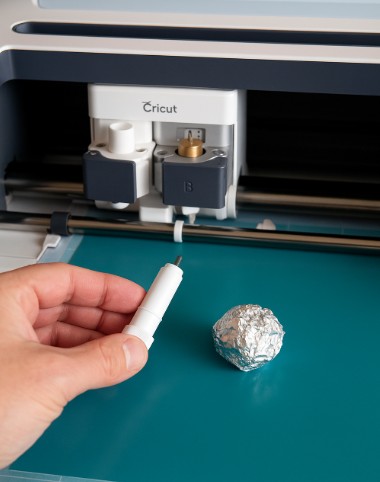
- Remove the blade housing and inspect the blade tip. If it looks dull, chipped, or dirty, replace it.
- Try cleaning the blade by pressing it gently into a ball of aluminum foil (this won’t sharpen it, but it can remove debris).
2. Select the Correct Material Setting
- In Cricut Design Space, double-check that you’ve chosen the correct vinyl type (e.g., “Premium Vinyl – Permanent” or “Premium Vinyl – Removable”).
- If your Cricut isn’t cutting through vinyl with the standard setting, try selecting “More Pressure.”
3. Perform a Test Cut
- Before cutting your full design, do a small test cut (like a triangle or square). This will save material and help you adjust settings.
4. Adjust Pressure or Add Multi-Cut
- If the vinyl still isn’t cutting through, increase the pressure in the custom settings.
- You can also set the machine to cut the design twice (multi-cut).
5. Check Your Cutting Mat
- If your mat is too worn, replace it.
- If it’s too sticky, press a clean t-shirt lightly on it to reduce tackiness before loading vinyl.
6. Clean the Blade Housing
- Tiny scraps of vinyl or paper can jam the blade. Gently remove the housing and blow out any debris.
7. Use the Right Blade for Vinyl
- For most vinyl projects, the Fine Point Blade works best. If you’re using thick specialty vinyl (like flocked or glitter vinyl), a Deep Point Blade might be required.
8. Calibrate Your Cricut Machine
- Go to Settings > Calibration in Cricut Design Space and follow the prompts to realign your machine.
9. Try Higher-Quality Vinyl
- If you’ve been using off-brand vinyl, switch to a reliable brand like Oracal or Cricut Premium Vinyl.
- Some users also prefer downloading free cut files and testing with good-quality vinyl before committing to big projects.
Pro Tip: If you’re looking for affordable, high-quality designs to test with, check out Creative Fabrica. They offer thousands of SVG cut files perfect for Cricut projects.
10. Update Software and Restart Machine
- Make sure Cricut Design Space is up to date.
- Restart your machine to clear any glitches.
How do I recalibrate my Cricut?
If your cuts are misaligned or not matching the intended layout, it might be time to recalibrate your Cricut. Calibration helps your machine align the blade with the exact cutting path.
Here’s how to recalibrate your Cricut:
- Open Design Space on your computer.
- Click the menu (☰) in the top-left and choose Calibration.
- Select your Cricut model and follow the on-screen prompts.
- The machine will perform a series of test cuts — examine these and confirm alignment.
This process ensures that your cuts are more accurate, especially after using tools like the rotary blade or print-then-cut features.
How do I get my Cricut to cut exact layout?
Getting precise layout cuts relies on both proper setup and machine settings. Here’s what to check:
- Use Attach or Flatten in Design Space to hold your design’s layout.
- Make sure to mirror your design if you’re cutting iron-on vinyl.
- Check that you’re using the correct mat size and positioning materials in the right spot.
For best results, always do a test cut before committing to your full project. It saves time and prevents wasted materials!
Troubleshooting Guide: Quick Fix Table
| Problem | Likely Cause | Solution |
|---|---|---|
| Cricut not cutting through vinyl | Dull blade, wrong setting, low pressure | Replace blade, choose correct material, increase pressure |
| Cuts too deep (through backing) | Wrong setting or too much pressure | Reduce pressure, select correct vinyl type |
| Jagged or uneven cuts | Dull blade, slipping mat | Replace blade, clean or replace mat |
| Blade dragging | Debris in housing, incorrect blade | Clean housing, check blade type |
| Nothing cut at all | Software glitch, improper loading | Restart machine, reload mat, recalibrate |
Preventing Future Cutting Issues
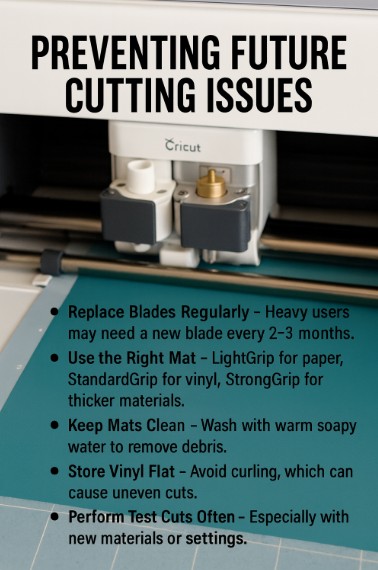
Prevention is always better than repair. Here are some tips to keep your Cricut cutting like new:
- Replace Blades Regularly – Heavy users may need a new blade every 2–3 months.
- Use the Right Mat – LightGrip for paper, StandardGrip for vinyl, StrongGrip for thicker materials.
- Keep Mats Clean – Wash with warm soapy water to remove debris.
- Store Vinyl Flat – Avoid curling, which can cause uneven cuts.
- Perform Test Cuts Often – Especially with new materials or settings.
- Update Software – Ensure Cricut Design Space is running the latest version.
- Calibrate Periodically – Keep your machine aligned and accurate.
Real-World Example
Let’s say you’re working on a project cutting permanent adhesive vinyl to make a custom mug decal. You load the mat, hit “Go,” and after cutting, you try to weed—but the vinyl won’t separate because the Cricut hasn’t cut all the way through.
Here’s how you’d troubleshoot:
- Do a test cut to confirm it’s not cutting fully.
- Increase the pressure setting from “Default” to “More.”
- If that doesn’t work, swap in a fresh Fine Point Blade.
- Reload the vinyl, making sure it’s flat against the mat.
- Run the cut again.
With these adjustments, your Cricut should cut the vinyl cleanly, making weeding easy and saving your project.
How to make precise cuts with Cricut?
Precision cutting comes down to a few key factors:
- Blade condition – A dull blade can snag or drag material.
- Material selection – Choose the exact material setting in Design Space.
- Mat grip – Ensure the material is firmly stuck to the mat to avoid shifting.
- Cut pressure – Use custom settings if default ones aren’t working.
Also, double-check that the cut lines in your design are set to “Cut” (not “Draw” or “Score”) within Design Space. A small mistake here can affect your whole project.
Final Thoughts
Dealing with a Cricut not cutting through vinyl can be frustrating, but in most cases, the fix is simple. Whether it’s a dull blade, the wrong setting, or a calibration issue, there’s almost always a straightforward solution.
By understanding the common causes and following the troubleshooting steps outlined above, you’ll not only solve your current problem but also prevent future issues. Keep your blades sharp, mats clean, and always double-check your settings—and your Cricut will reward you with flawless cuts for years to come.
If you need inspiration or ready-to-cut designs, don’t forget to explore Creative Fabrica’s library of SVG cut files to test your Cricut once it’s cutting perfectly again.
Happy crafting!
Download this file then check it's Cricut-ready with SVG Doctor before you cut — it scans for stray nodes, layer issues, and anything that might cause problems in Design Space.
Check My SVG Free →