Personalization and monograms are incredibly trendy in the crafting world. Whether it’s for weddings, gifts, home décor, or apparel, custom monograms allow crafters to impart a unique, elegant touch to projects. Among crafters who use cutting machines like the Cricut, SVG (Scalable Vector Graphics) files are a go-to file format because they preserve crispness at any size.
But creating monograms as SVGs can sometimes require design software (Illustrator, Inkscape, Affinity, etc.) and expertise to get the letters arranged, styled, and exported correctly. That’s where Monogram Maker comes in: a free, browser-based app that lets you generate 3-letter monograms, preview them, and download them in SVG format — ready to import into Cricut Design Space or other vector-aware platforms.

In this article, we’ll explore what Monogram Maker is, how to use it, its benefits and limitations, tips for making the most of it, and how it fits into a Cricut crafter’s workflow.
What Is Monogram Magic?
At its core, Monogram Maker is a web application that:
- Takes three letters (for example, first, last, middle or any order)
- Lays them out in a monogram configuration
- Offers styling or preview
- Allows downloading the result as an SVG file
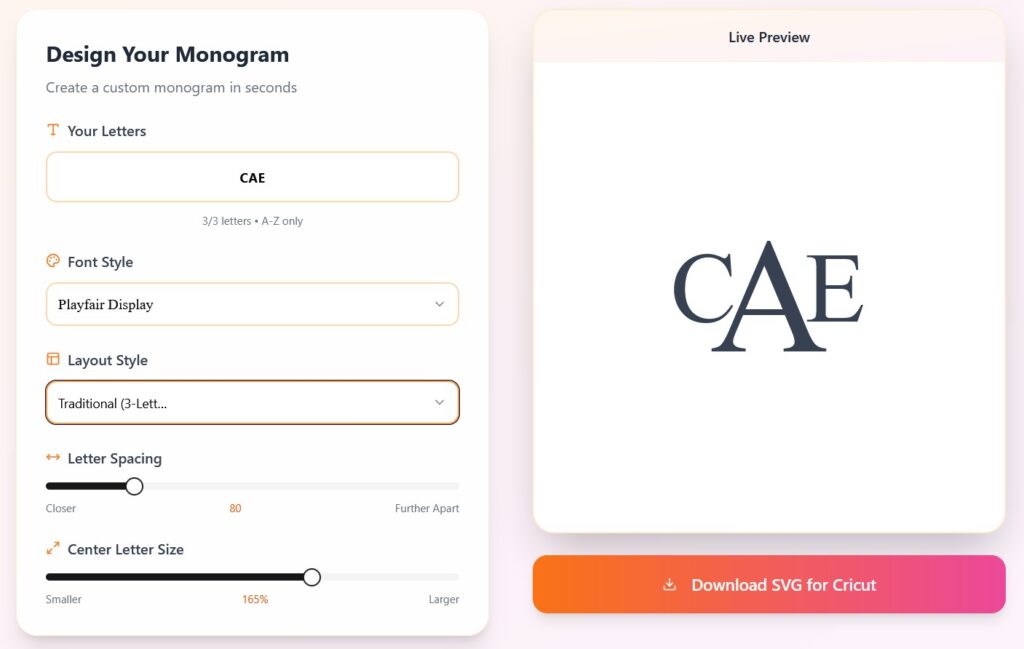
Because it is web-based, there’s no need to install or maintain local software. The app’s simplicity makes it accessible to beginners, yet still useful for more advanced crafters who want a fast monogram solution without re-inventing the wheel.
The generated monogram is immediately usable in Cricut Design Space (or any other software that accepts SVGs).
Why This Kind of Tool Matters for Cricut Users
1. Saves Time vs Manual Design
If you were to manually design a three-letter monogram, you might open Inkscape or Illustrator, arrange three separate text elements, choose fonts, adjust spacing (kerning, rotation, baseline, etc.), position them in overlapping or “frame” layouts, and then export. That takes time, especially if you want to produce many monograms for different names.
With Monogram Maker, much of that layout work is automated: you input the letters, and the app arranges them for you. This saves you several minutes of manual tweaking per design.
2. SVG Format Ensures Quality
SVGs are vector formats, which means they scale without loss of resolution. This is crucial for cutting machines: if you blow up a raster image, it becomes fuzzy or pixelated. But an SVG stays sharp. Monogram Maker SVG output means you get crisp outlines, clean cuts, and predictable behavior in Design Space.
3. Accessibility and Cost
Because the app is free and browser-based, it lowers barriers to entry. You don’t need to buy expensive design software or have advanced vector skills. Even someone new to crafting and Cricut can generate a monogram in just a minute or two.
4. Integration with Cricut Workflow
Cricut Design Space supports SVG uploads. Once you download the monogram file, you can bring it into your project, combine with shapes, align, weld, slice, etc. It becomes a component in your design pipeline, rather than an external final image you can’t manipulate.
How to Use Monogram Magic — Step by Step
While the app is intended to be simple and intuitive, here’s a walk-through to help even beginners:
- Open the App in a Browser
Go to the Monogram Maker URL in any modern browser (Chrome, Firefox, Edge, etc.). - Enter the Three Letters
There’s usually a text input or three separate fields (first, middle, last) where you type your letters (for example, “A”, “B”, “C”). Be careful about capitalization if the app distinguishes styles. - Select Styling Options
The app lets you choose the layout style, font style, letter sizing, etc. - Preview the Monogram
The app generates a live preview so you can see how the monogram will look. - Download as SVG
When you’re happy with the look, use the “Download” button to get the design in SVG format. The file will typically be named something likemonogram.svg. - Import into Cricut Design Space
Open Design Space, upload the SVG file, and insert it into your canvas. From there you can scale, position, combine, slice, weld, or adjust as needed. - Cut or Draw
Use the usual process in Design Space to send the design to your Cricut, choose materials, and proceed with cutting or drawing.

That’s it! The process is intended to be frictionless, giving crafters a fast route from concept (letters) to usable monogram in Cricut.
Strengths & Limitations
Strengths
- Speed & Simplicity: One of the key advantages is how quickly you can generate a monogram without needing deep graphic design knowledge.
- Free and Browser Based: No cost, no software installation. That lowers the barrier for beginners or casual crafters.
- SVG Output: Guarantees high-quality vector output that plays nicely with Cricut and other vector tools.
- Single Purpose, Focused: Because it has a narrow scope (three-letter monograms), it does that job well without overwhelming users with too many options.
- Immediate Use in Cricut Workflow: The SVG file can be imported directly into Design Space (or other craft software) and manipulated further.
Limitations / Caveats
- Limited to Three Letters: The app is focused on three-letter monograms; if you want 2-letter initials, full names, or longer acronyms, you’ll need another tool or workaround.
- Styling Constraints: If the app offers only one default layout or font style, creative flexibility is limited. You may not get your ideal aesthetic out of the box.
- No Advanced Editing: Because it’s simplified, you might lack granular controls like exact letter spacing, rotation, anchors, or manual path editing. For more complex customization, you’ll still need a vector editor.
- No Batch / Bulk Export (likely): If you want to create dozens or hundreds of monograms at once, a manual workflow is still required unless the app supports batch operations.
- License Constraints / Commercial Usage: It’s vital to check the licensing. Some tools are free for personal use but may require attribution or licensing for commercial use. With Monogram Maker deverything you make has a Commercial License.
Workflow Tips & Best Practices
To get the most out of Monogram Magic in your Cricut projects, consider these tips:
- Plan the Letter Order
Choose which initials will be first, middle, last (or some other order). If your last name initial is the “middle” in the monogram (center, larger), ensure you input accordingly (the app may assume the middle position is bigger). - Test with a Dummy Set
Before generating many monograms, try a test run: pick a sample initials set and download the SVG, import into Design Space, check if any parts overlap weirdly, or whether further editing is needed. - Clean Up in SVG Editor (Optional)
If needed, open the downloaded SVG in a vector editor (like Inkscape or Adobe Illustrator) and tweak spacing, remove unnecessary nodes, simplify curves, or convert strokes to paths for compatibility. - Use “Weld” / “Merge” in Design Space
After importing, if letters overlap and you want them to cut as one piece, use the weld tool in Design Space to unify shapes. This ensures no internal cut lines appear. - Combine with Other Shapes / Frames
Once in Design Space, place your monogram inside shapes (circle, rectangle, wreath, etc.), add outlines, or clip into backgrounds for layering. - Test Cut on Similar Material
Before cutting your final material, test on scrap material (especially for fine script or swashes) to ensure the monogram cuts cleanly and weeds well. - Optimize Size and Complexity
Avoid making very small cuts or very intricate details in the monogram if your material or blade can’t handle them. Simplify if necessary. - Organize Your Files
Name your monogram SVGs clearly (e.g. “SMJ_monogram.svg”) and store them in a well-organized folder structure for future reuse. - Provide Feedback / Feature Requests
Free tools often improve with user feedback. If Monogram Maker has a contact, consider suggesting features that would benefit your workflow (batch export, more fonts, decorative elements, etc.).
Example Use Case
Imagine a small business selling custom monogrammed tote bags for a bridal party. The workflow might look like:
- Client provides bridesmaids’ initials (e.g. A, B, C).
- You use Monogram Maker to generate three-letter monogram SVGs for each set.
- You import the SVG into Design Space, scale to appropriate size (say 3.5 in diameter), and adjust placement.
- You weld overlapping parts, add a circle outline or decorative frame, and arrange multiple copies on a cutting mat layout.
- You cut the design from heat transfer vinyl or adhesive vinyl, weed, and apply to tote bags.
- You photograph and deliver the monogrammed totes, confident that each monogram was generated consistently and cleanly.
Because Monogram Maker simplified the monogram creation step, you only needed to focus on cutting, materials, and client delivery — not designing each monogram by hand.
Potential Audience & Market
This kind of tool appeals to:
- Hobby crafters / beginners who want to personalize items without learning vector design from scratch.
- Small business owners who produce monogrammed goods (totes, shirts, mugs, etc.), saving time on monogram layout.
- Teachers / clubs / events needing monogrammed gifts or merchandise.
- Cricut / Silhouette / other cut-machine users who want immediate SVG monograms to drop into their existing projects.
- Graphic designers who may use it as a quick generator and then refine in a full design tool.
Because it’s free, it’s especially powerful as an entry-level tool — users who outgrow it might migrate to more sophisticated apps, but many will retain it for quick monograms.
Tips for Users & Getting the Most Out of It
To make Monogram Maker part of your regular toolset, consider these user-focused tips:
- Bookmark the App: Keep it handy in your browser or tool list for quick access.
- Keep a Test File: Maintain a “blank” monogram template (SVG or open project) that you reuse or modify, so you don’t have to start fresh each time.
- Customize After Export: If the monogram is nearly right but slightly off in spacing or curvature, open it in a vector editor (Inkscape, Affinity, Illustrator) to tweak.
- Use Consistent Style Choices: If you run a business or brand, choose preferred font or monogram style and stick with it for consistency across projects.
- Combine with Other Design Elements: Don’t limit monograms to standalone use — use them within larger designs (wreaths, badges, seals, text). Because you have the vector file, you can integrate seamlessly.
- Contribute Feedback: If the developer provides a feedback channel, report bugs or requested features. Developers of free tools often rely on user suggestions for improvement.
- Check for Updates or New Versions: Occasionally revisit the site and see if new export formats, features, or fonts have been added. The developer might roll out enhancements.
- Respect Licensing & Terms: Before using in commercial products, verify whether Monogram Maker allows commercial use. If needed, consider reaching out for permission or attribution.
Round up
Monogram Maker is a lightweight, free, browser-based tool designed to generate three-letter monograms in SVG format—ideal for Cricut users or anyone working with vector-based cutting or design software. Its strengths lie in simplicity, speed, and direct integration into crafting workflows.
While it doesn’t replace a full-featured design suite, it fills a valuable niche: when you just need a clean, usable monogram quickly, without fuss. For many crafters and small business owners, having a tool like this can shave off design hours, eliminate tedious manual layout, and let them focus on materials, creativity, and production.
Download this file then check it's Cricut-ready with SVG Doctor before you cut — it scans for stray nodes, layer issues, and anything that might cause problems in Design Space.
Check My SVG Free →