If you’ve ever fallen down the rabbit hole of DIY crafts, vinyl projects, or sticker-making, chances are you’ve bumped into the two biggest names in cutting machines: Cricut and Silhouette.
Both brands have loyal fans, powerful machines, and deep ecosystems of materials and tools. But they also take slightly different approaches. Choosing between them can feel like choosing between iPhone and Android—both are capable, but they appeal to different personalities and priorities.
This article takes a close, balanced look at Cricut and Silhouette machines, their software, and their ecosystems. We’ll use side-by-side charts, clear pros and cons, and real-world examples so you can decide which is best for your crafting style.
Why this comparison matters with Cricut and Silhouette
Before we dive into the nitty-gritty, let’s set the stage.
- Cricut markets itself as the “friendly” option: easy setup, sleek hardware, guided software, and a thriving online community. It’s designed to help beginners feel successful quickly.
- Silhouette pitches itself as the “flexible” option: more advanced design tools, bigger print-and-cut capabilities, and a software-first philosophy. It tends to attract users who want power and precision.
Both brands can cut vinyl decals, iron-on transfers, cardstock, stencils, and stickers. Both let you upload your own SVG designs. And both can power a thriving Etsy shop. But the way you get there—the software you use, the workflow you follow, and the accessories you buy—differs in important ways.
Cricut and Silhouette : At-a-glance comparison
Here’s a quick snapshot before we dig deeper:
| Feature | Cricut (Joy Xtra / Explore / Maker 3 family) | Silhouette (Portrait / Cameo 4 family) |
|---|---|---|
| Setup & onboarding | Beginner-friendly, guided | Straightforward but more technical |
| Software | Design Space (cloud-leaning, simplified) | Silhouette Studio (robust, desktop-first) |
| Learning curve | Easier for new users | Steeper, but more pro features |
| Max cut width | Up to 13″ (Explore/Maker 3) | 8.5″ (Portrait) / 12″ (Cameo 4) |
| Materials | Excellent; Maker supports fabric & thick stock | Excellent; strong for vinyl & stickers |
| Print then Cut | Polished, limited area | Flexible sizing, more registration options |
| Noise level | Quieter overall | Louder under load |
| Accessories | Premium ecosystem, many “smart” tools | Broad tool support, 3rd-party friendly |
| Price/value | Higher polish, higher cost | Strong features per dollar |
| Best fit | Beginners to advanced makers | Intermediate to power users |
Noise levels
Noise may not sound like a big deal, but if you’re cutting late at night or in a shared space, it matters. Cricut machines generally run quieter than their Silhouette counterparts. Cricut models trend quieter; Silhouette gets louder at higher speeds.
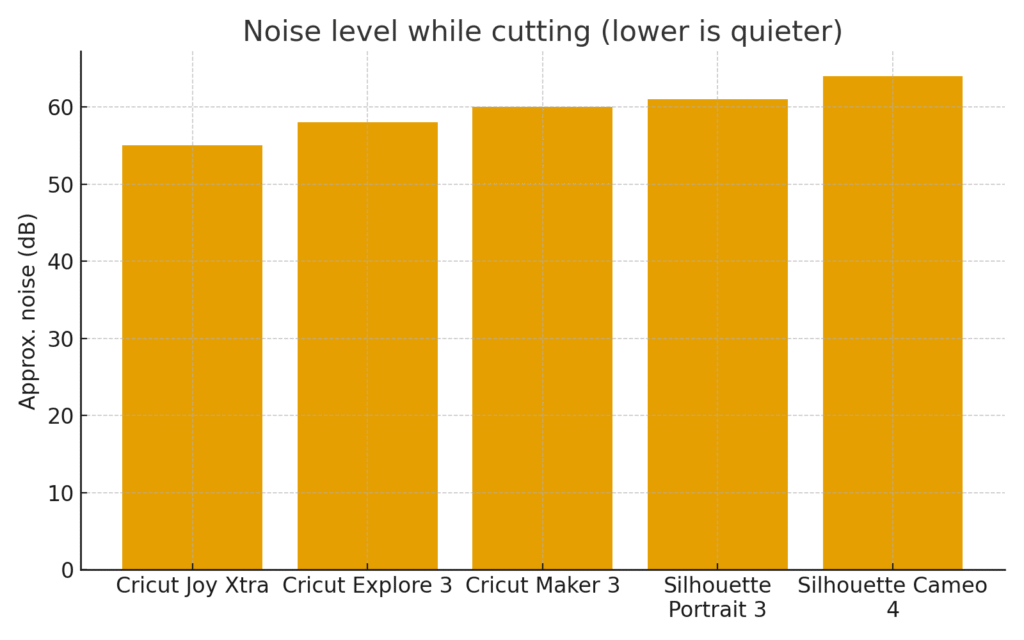
If peace and quiet is important—say, you craft while kids nap—Cricut has the edge.
Learning curve vs. capability
One of the biggest differences lies in the software. Cricut’s Design Space is minimalistic and guided, while Silhouette’s Studio is feature-rich and more like a professional vector tool. Cricut leans toward ease of use, while Silhouette leans toward advanced control.
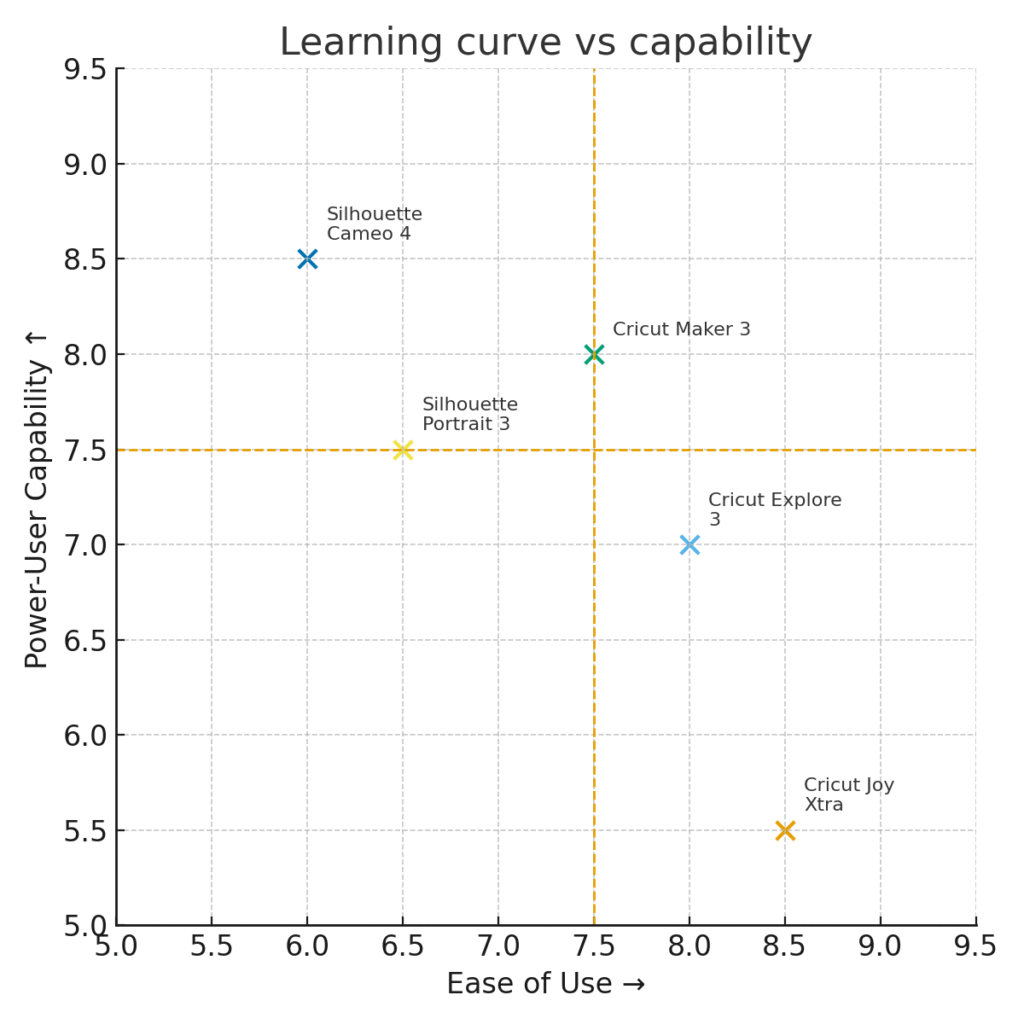
This is the heart of the decision:
- Cricut feels simpler and gets you cutting sooner.
- Silhouette gives you more knobs and dials to control—but you’ll need patience to master them.
Maximum cut width
If you plan on making wide decals or longer signs, cut width matters.
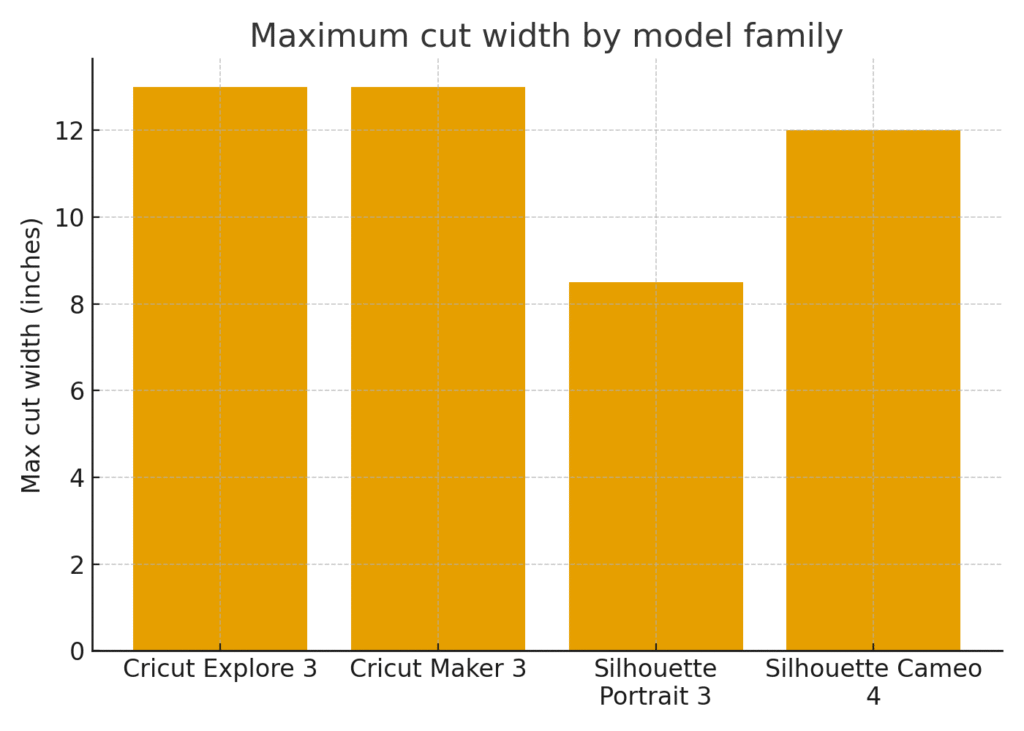
Both Cricut and Silhouette offer options for larger projects, but Cricut’s smart-material support nudges it just past Silhouette’s 12″. For ultra-wide projects, Silhouette does sell a Cameo Pro with a 24″ width, but it’s a different class altogether.
Software features
The software is where most crafters notice the biggest day-to-day differences.
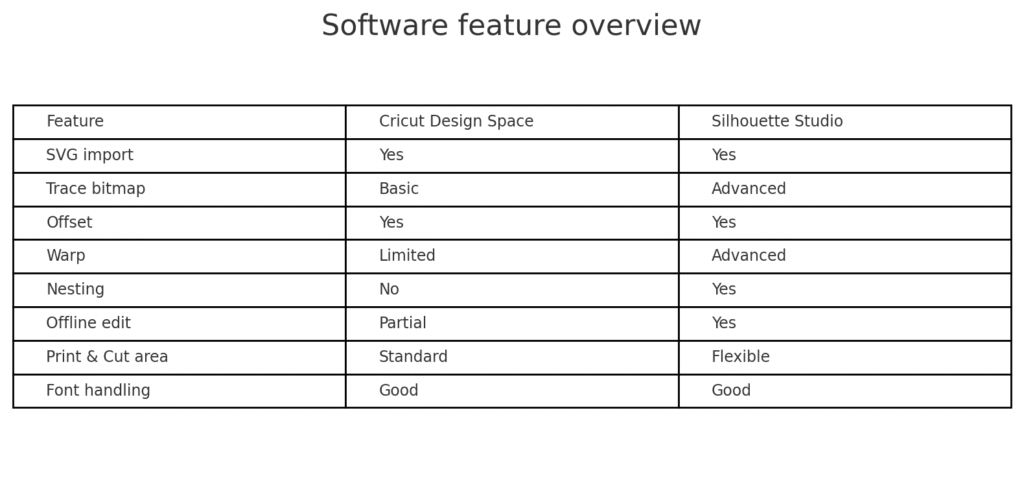
Highlights:
- Cricut Design Space is lightweight and cloud-based. Great for simple uploads, font use, and guided projects. Less great for power-users who want advanced tracing or nesting.
- Silhouette Studio includes offset, warp, nesting, tracing, and flexible Print & Cut margins. But its interface can overwhelm beginners.
Estimated starter costs
The upfront price of the machine is only part of the story. You’ll also need tools, mats, blades, and materials.
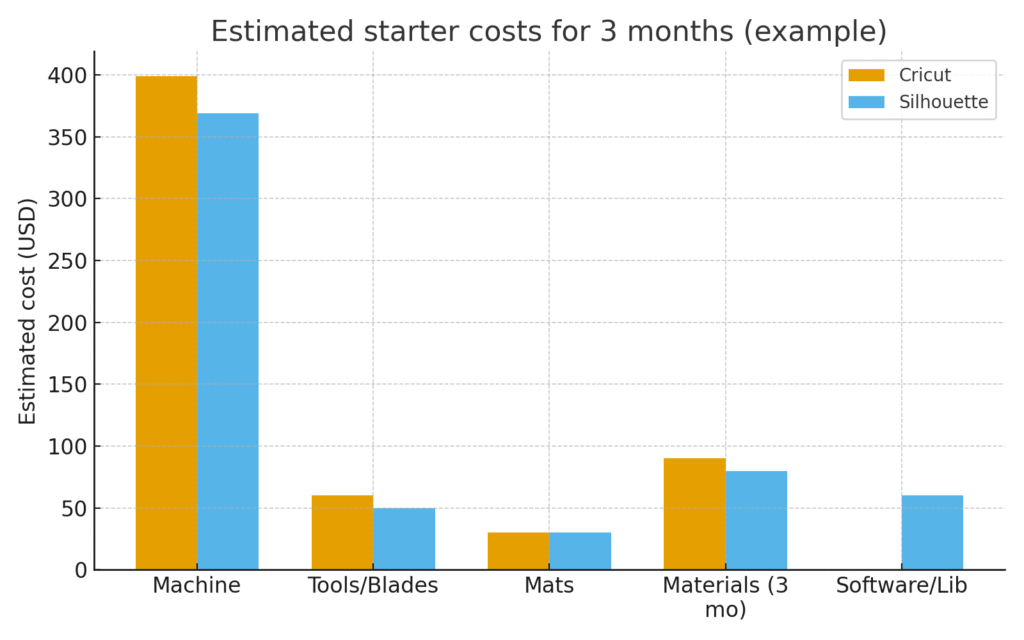
Cricut’s ecosystem leans premium, and you may find yourself buying Cricut-branded “Smart Materials” and accessories. Silhouette often provides similar functionality at a lower total spend, but may require a software upgrade to access all features.
Pros and cons (balanced)
Cricut pros
- Friendly onboarding, fastest unbox-to-first-cut workflow.
- Polished hardware, quieter operation.
- Deep community support, tutorials, and project inspiration.
- Excellent material compatibility, especially with Maker’s specialty blades.
Cricut cons
- Design Space can feel limiting; fewer pro vector tools.
- Strong nudges toward Cricut-branded supplies and subscriptions.
- Power users may need external design software.
Silhouette pros
- Studio software is highly capable; professional-style features.
- Flexible Print & Cut (bigger areas, great for sticker shops).
- Compatible with many third-party materials.
- Often stronger value for money.
Silhouette cons
- Steeper learning curve; less hand-holding.
- Louder in operation.
- Some advanced features locked behind paid software tiers.
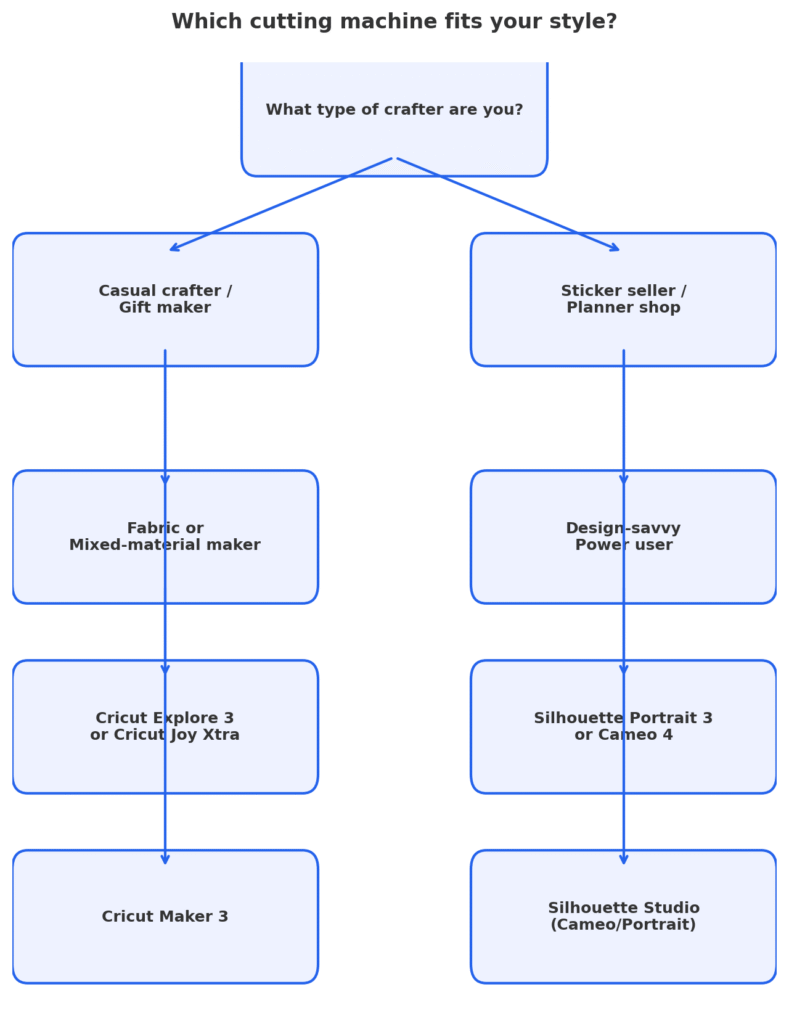
Which machine fits your crafting style?
One of the easiest ways to make a decision is to think about how you’ll actually use your machine. Cricut and Silhouette both make versatile cutters, but certain models shine brighter depending on your crafting goals.
Casual crafter / gift maker
Recommended: Cricut Explore 3 or Cricut Joy Xtra
If you’re just starting out, want to make personalized gifts, or enjoy occasional weekend projects, Cricut’s mid-range machines are hard to beat.
- Cricut Explore 3 is the “all-rounder” of the family. It handles vinyl decals, iron-on for t-shirts, paper crafts, and even light cardstock projects. It also supports Cricut’s “Smart Materials,” letting you cut without a mat for longer banners and decals.
- Cricut Joy Xtra is the compact, budget-friendly option. It’s perfect for labels, greeting cards, party favors, and quick vinyl projects. Despite its small size, it now supports Print Then Cut, which makes it surprisingly powerful for stickers and small crafts.
Why it works for casual crafters:
- Super simple setup — Design Space walks you through your first cut.
- Strong library of pre-made projects (cards, mugs, labels) that are ready-to-make.
- Quiet enough for home use, attractive design, and small footprint.
Sticker seller / planner shop
Recommended: Silhouette Portrait 3 or Silhouette Cameo 4
If your main goal is to design and sell stickers, planner pages, or custom labels, Silhouette’s machines shine.
- Silhouette Portrait 3 is a compact, affordable machine that excels at Print & Cut. It supports A4 and letter-sized sheets, making it ideal for sticker shops that need accuracy and efficiency.
- Silhouette Cameo 4 steps things up with a 12-inch cutting width, optional roll feeder, and more powerful cutting force for thicker materials. It’s popular with Etsy sellers who want production speed at home.
Why it works for sticker shops:
- Silhouette Studio allows larger Print & Cut areas compared to Cricut Design Space. This means fewer wasted margins and more stickers per sheet.
- Advanced alignment and registration controls give professional-looking results.
- Compatible with a wide range of sticker papers, foils, and laminates — you’re not locked into one brand.
Fabric or mixed-material maker
Recommended: Cricut Maker 3
If you want to move beyond paper and vinyl into fabric, balsa wood, chipboard, and leather, Cricut Maker 3 is the top choice.
- It’s Cricut’s flagship machine, with the most tool options.
- The Rotary Blade cuts fabric cleanly without backing, which quilters and sewists love.
- The Knife Blade can handle thick materials like chipboard or 2mm craft foam, opening up 3D projects, cosplay props, and layered wall art.
Why it works for multi-material makers:
- Truly versatile — one machine can handle vinyl decals, sewing patterns, wood projects, and more.
- Expansive tool system: scoring wheel, engraving tip, debossing tool, perforation blade.
- Strong community support for sewing patterns, quilting templates, and mixed-media projects.
Design-savvy power user
Recommended: Silhouette Studio (with Cameo or Portrait hardware)
If you’re comfortable with Adobe Illustrator, CorelDRAW, or other vector tools, Silhouette Studio feels more like “home.” It offers the most advanced native tools of any cutter software.
- Advanced tracing allows you to turn hand-drawn sketches or raster graphics into clean cut paths.
- Offset and nesting tools save material by tightly packing shapes together.
- Warp and distort features let you manipulate text and graphics in ways Cricut Design Space simply doesn’t support.
- With paid tiers (Designer Edition, Business Edition), you unlock SVG import/export, advanced file handling, and multi-cutter workflows.
Why it works for power users:
- Full control — no need to switch between design software and cutter software.
- Larger Print & Cut margins for complex sticker sheets.
- Great value for professional sellers who need flexibility and scalability.
Bottom line:
For design pros → Silhouette Studio offers professional-grade features that Cricut doesn’t.
For hobbyists → Cricut’s guided simplicity makes it easier to start and stick with.
For small business crafters → Silhouette’s flexibility pays off in the long run.
For fabric & mixed-media makers → Cricut Maker 3 unlocks the broadest creative range.
Real-world test projects
Want to see differences in action? Here are three beginner-friendly tests:
- Bookmark SVG (layered cardstock)
- Cricut: quick, guided cut, smooth weeding.
- Silhouette: more setup, but finer control over offsets and detail.
- Sticker sheet (Print & Cut)
- Cricut: polished workflow, smaller cut area.
- Silhouette: bigger print area, flexible registration, better for shop owners.
- HTV T-shirt design
- Both handle iron-on vinyl beautifully; Cricut wins on setup speed, Silhouette gives more layout control.
Tip: You can find free and premium SVGs to test at Creative Fabrica
Ecosystem and accessories
Both brands have plenty of accessories, but their philosophies differ:
- Cricut: premium, integrated, designed for frictionless use. Tools like the foil transfer kit and rotary blade are polished and easy to buy.
- Silhouette: more open, often cheaper, but sometimes requires DIY adjustments. Great for experimenting with third-party supplies.
Community & support
Cricut has a massive Facebook and YouTube presence, with countless tutorials, free projects, and troubleshooting guides. Silhouette has a strong, but more niche, community—geared toward sticker shops, planners, and advanced paper crafters.
Final verdict on Cricut and Silhouette
So—Cricut or Silhouette?
- Choose Cricut if you want a smooth, guided, and polished experience from day one. You’ll pay a bit more, but you’ll spend less time troubleshooting and more time crafting.
- Choose Silhouette if you value advanced control, flexible Print & Cut, and are comfortable with a steeper learning curve. For sticker sellers and design-savvy users, it’s a powerhouse.
The truth is that both ecosystems are thriving, and you can make professional-quality crafts with either. The best choice depends on your personality: do you want guided simplicity, or do you want complete control?
Download this file then check it's Cricut-ready with SVG Doctor before you cut — it scans for stray nodes, layer issues, and anything that might cause problems in Design Space.
Check My SVG Free →
[…] — which means they scale infinitely without losing quality. This is crucial for crafting because Cricut and Silhouette machines need precise instructions on where to […]